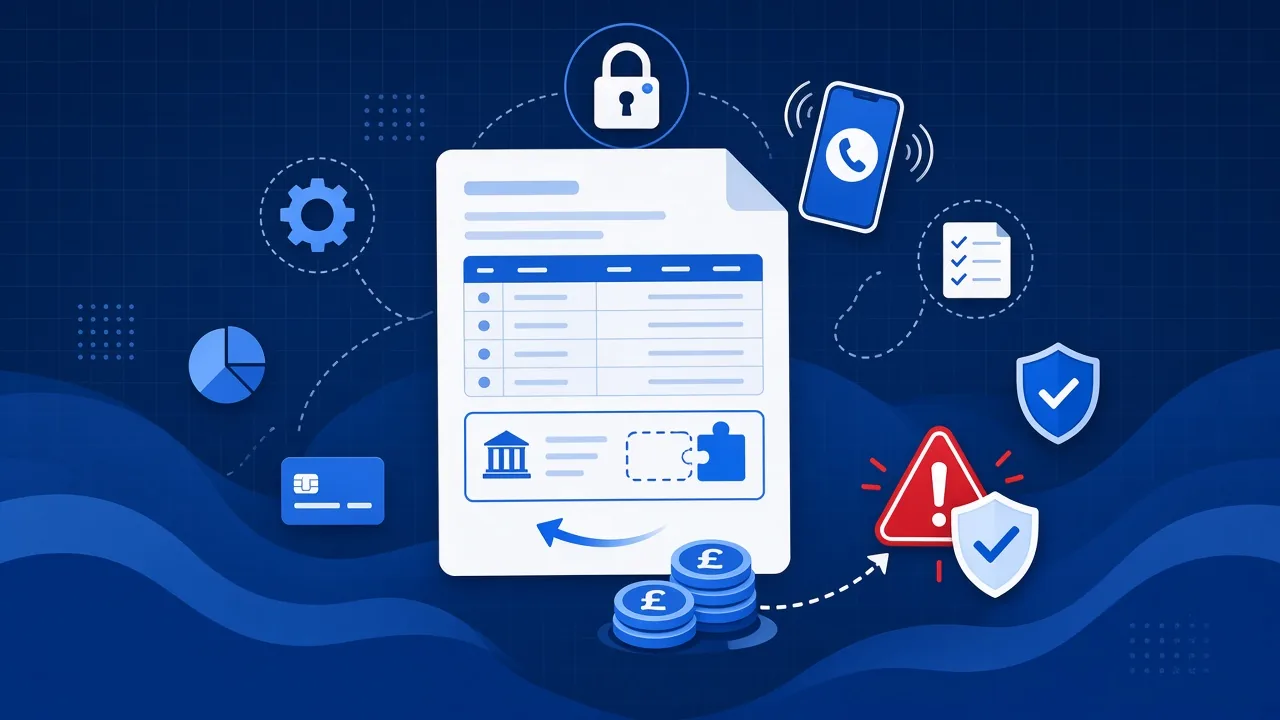
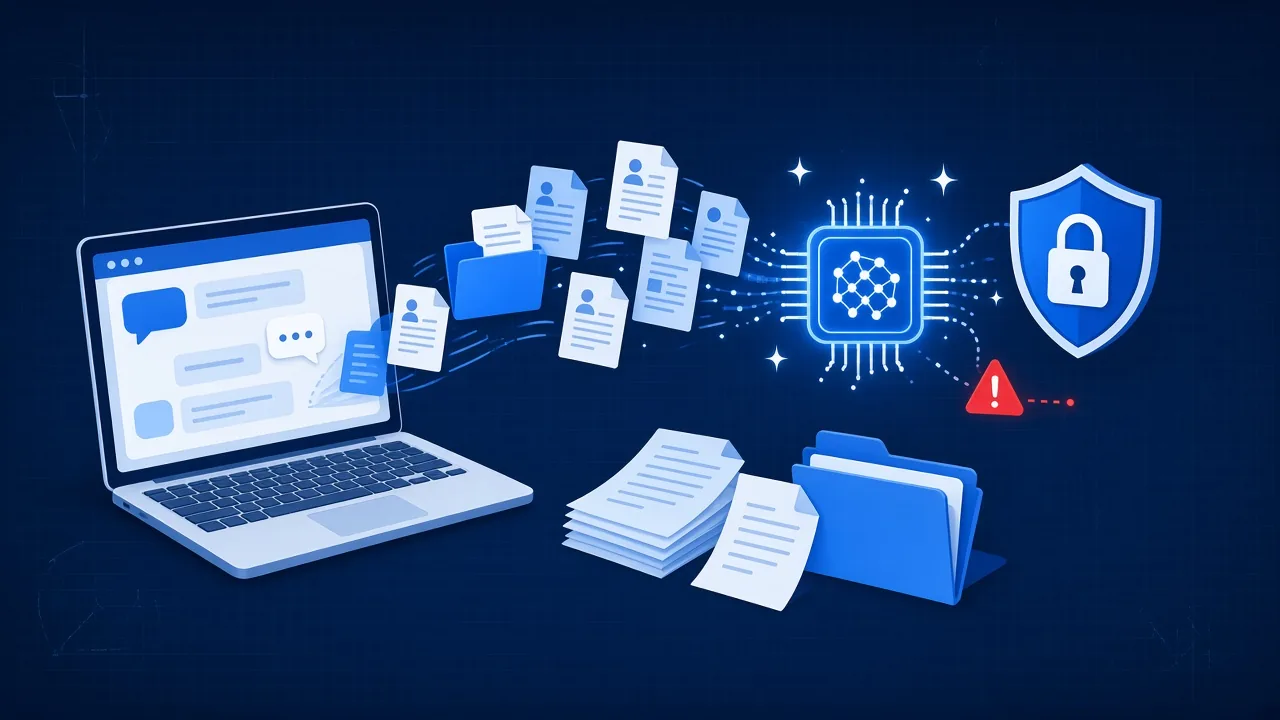
For most small businesses in Hull and East Yorkshire, Microsoft 365 is the business. Email, files, Teams, calendars and client records all live there. So when something goes wrong in Microsoft 365, it rarely stays small.
Microsoft gives you most of the tools you need. The problem is that several of them are not on by default, or were set up years ago and never looked at again.
The government’s Cyber Security Breaches Survey 2025 found that 43% of UK businesses reported a breach or attack in the previous 12 months, and phishing was the most common type by a wide margin. A lot of those attacks start with a Microsoft 365 login.
Here are five mistakes we see again and again, and the fix for each.
1. MFA is not on every account
What goes wrong: one stolen or guessed password is all a criminal needs to reach someone’s email, files and Teams chats. From there they can read invoices, message your clients from a real address and reset other passwords.
The fix: switch on multi-factor authentication for every user, starting with anyone who has admin rights. Microsoft puts the figure at over 99.2% of identity-based attacks blocked. If you only do one thing after reading this, make it this one.
The usual objection is that it will annoy people. In practice, on a managed device, most staff get prompted rarely. The friction is a fraction of what people expect, and far less than a compromised mailbox.
2. Too many admins, or a shared admin login
What goes wrong: every admin account is a master key. If one is phished, the attacker can change anything in your tenant, from mailbox rules to security settings. A shared login makes it worse, because afterwards you cannot tell who did what.
The fix: give admin rights to a few named people only, each with their own account and MFA. Day-to-day work happens on a normal account, not the admin one. Microsoft’s own guidance is to keep Global Administrators below five.
3. Auto-forwarding to outside addresses is not blocked
What goes wrong: once a criminal is inside a mailbox, one of the first things they do is set a quiet rule copying every email to an address they control. That includes invoices, payment details and supplier conversations, which is exactly the material needed for payment diversion fraud.
The fix: block automatic forwarding to external addresses across the organisation, then check existing mailboxes for forwarding and inbox rules nobody recognises. The rule is often named something unremarkable, or just a full stop, so it does not catch the eye.
4. Assuming Microsoft backs it all up
What goes wrong: Microsoft keeps the service running. That is not the same as keeping a copy of your data, which is what most people assume they are getting. Deleted items can only be recovered for a limited window, such as 93 days in the SharePoint recycle bin. After that they are gone.
Accidental deletion, a disgruntled leaver, or ransomware syncing its way through OneDrive can all cause losses you only notice months later.
The fix: add a separate backup covering email, OneDrive, SharePoint and Teams, and test a restore. A backup nobody has restored from is a theory, not a backup.
5. Leavers’ accounts left switched on
What goes wrong: an old account can still open email and files, and nobody is watching it. If the password turns up in a breach, or the person still has access on a personal phone, misuse can run for months unnoticed.
The fix: make account changes part of your leaver process rather than an afterthought. Block sign-in on their last day, sign them out of all devices, then hand their mailbox and files to a colleague before removing the licence.
What good looks like
None of these fixes needs new software or a big project. A well-run tenant usually has:
- MFA on every account, with no exception for “just the boss”
- A small number of named admins, each with their own login
- External auto-forwarding blocked, and mailbox rules checked
- A separate, tested backup of email, OneDrive, SharePoint and Teams
- A joiners and leavers checklist that includes Microsoft 365
Four of those five map straight onto what Cyber Essentials actually asks for, and they answer most of the awkward questions on a cyber insurance form, because you can show who has access and what happens to your data.
Not sure how yours is set up?
Book a free Microsoft 365 health check. We use read-only access, so we can look but cannot change anything. We check sign-in security, admin accounts, sharing, licensing and backup, then walk you through what we find in plain English. No charge and no hard sell.
Sources, accessed 1 October 2026: DSIT and Home Office, Cyber Security Breaches Survey 2025. Microsoft Learn, Security defaults in Microsoft Entra ID. Microsoft Learn, Best practices for Microsoft Entra roles. Microsoft Learn, Control external email forwarding. Microsoft Support, Restore items in the SharePoint recycle bin. Microsoft Learn, Remove a former employee. Settings and figures reflect Microsoft guidance at the time of writing.